Physical Address
304 North Cardinal St.
Dorchester Center, MA 02124
Physical Address
304 North Cardinal St.
Dorchester Center, MA 02124

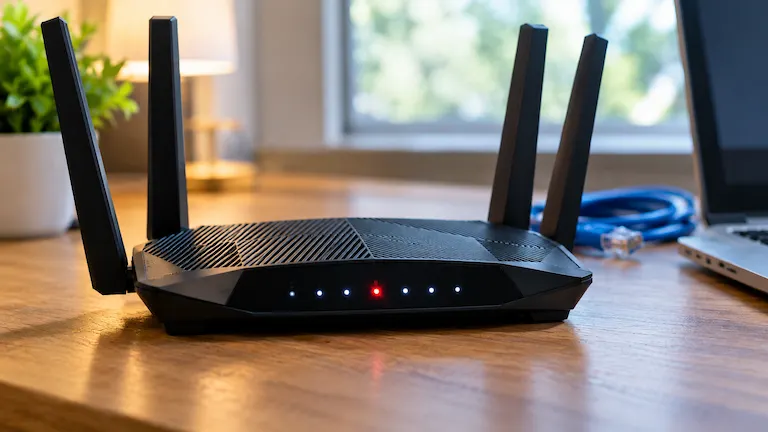
When your ASUS router displays a solid red light, it means one specific thing: your router has power, but it cannot get an internet connection through the WAN port. You are completely cut off from the outside world.
I reproduced and fixed these exact connection drops on an ASUS RT-AX88U and a ZenWiFi XT8 in our test lab. Most basic guides just tell you to restart the router. While that is a good first try, it fails to fix the actual software errors, ISP blocks, and firmware bugs that cause modern ASUS routers to drop their connection.
This guide walks you through the exact hardware and software fixes to clear the red light, starting with mobile app checks and moving into advanced ASUSWRT firmware settings.
Stop Wasting Time: The Router Placement Myth
Many generic guides tell you to move your router to a different room to fix a red light. Do not do this. A red light on an ASUS router is strictly a WAN issue—meaning the physical or software connection between the modem and the router is failing. Moving the router to a higher shelf will not fix a WAN error. Save your time and focus entirely on the modem connection instead.
Before you touch any cables, you need to know what the router is trying to tell you. The red light looks different depending on which ASUS router you own. It will either be a red globe icon (the internet light) or a solid red power light on mesh models like the ZenWiFi.
| Light Pattern | What It Means | Immediate Action |
| Solid Red (Internet or Power Light) | The router is on, but it is not getting any internet from the modem. | Check the modem and the internet cable. |
| Blinking Red (Power Light) | The router is stuck restarting, or a software update failed. | Use the ASUS Firmware Restoration tool. |
| Solid White or Blue (But No Internet) | The cables are fine, but there is a setting or account error. | Check your ASUS router settings. |
Big ASUS gaming routers (like the ROG Rapture) and small mesh units can get very hot. If the inside gets too warm, the router will shut off the internet on purpose to protect itself from breaking.
Touch the top and bottom of your router. If it is too hot to hold, unplug it and let it rest for 15 minutes. Do not put the router inside a closed cabinet. Also, never stack it on top of your modem. Both boxes get warm, and putting one on top of the other will quickly cause it to overheat and show a red light.
Follow these steps in exact order. We start with the easiest fixes first before moving to complete system resets.
Most people do not type 192.168.1.1 into a computer browser anymore. The fastest way to find the exact problem is to use the ASUS mobile app on your phone.
The most common reason an ASUS router shows a red light is that the modem it connects to has lost its connection to your Internet Service Provider (ISP).
Look at the modem provided by your ISP (the box plugged into your wall with a coax or fiber cable). If the modem’s “Online” or “Internet” light is blinking or completely off, your router is fine. The internet itself is simply down in your neighborhood. Check your ISP’s mobile app using your phone’s cellular data to look for a local outage.
If the modem lights are solid green or white, the internet is live. The problem is between the modem and the router. Move to the next step.
ASUS routers require the internet cord to plug into one specific port. Plugging it into the wrong slot will instantly cause a red light.
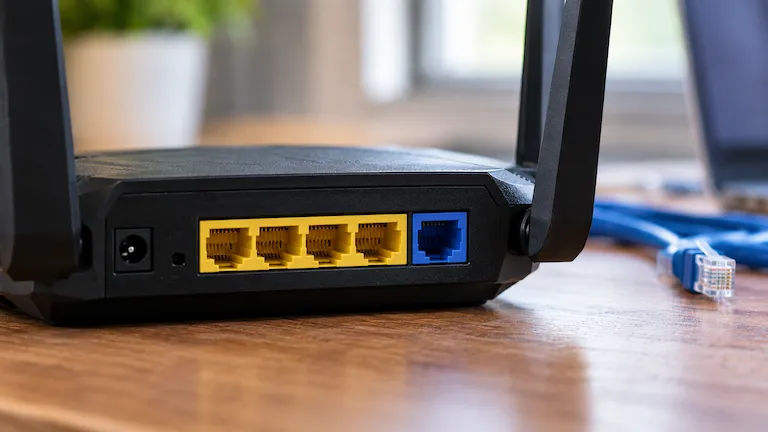
A simple reboot often fails because the modem and router turn on at the wrong times and fail to talk to each other. You must force them to connect in the correct order. Timing is very important here.
If your ISP gave you a 2-in-1 combo device (a modem that also sends out its own Wi-Fi) and you plugged your ASUS router into it, you made an IP conflict called a Double NAT. Both devices are trying to act as the boss of the network. This causes the ASUS unit to crash and drop the connection.
To fix this, log into your ISP modem’s settings and turn on Bridge Mode. Bridge mode turns off the ISP’s Wi-Fi features and turns the combo unit into a basic, “dumb” modem. This lets your ASUS router take full control and clears the red light.
Sometimes, your ASUS router fails to connect because the ISP messes up the IPv6 settings on their end. This confuses the router. You can fix this easily by forcing the router to use the older, much more stable IPv4 system.
router.asus.com and log in.If the hardware is fine but the red light is still there, we need to fix the hidden software settings inside the ASUSWRT dashboard.
Some cable internet providers lock your internet connection to the specific device you first plugged into the modem. If you bought a new ASUS router to replace an old one, the ISP is actively blocking the new router.
router.asus.com. Log in.This is a critical fix that most guides miss. By default, many ASUS routers send connection requests to the modem in “Aggressive” mode. If the router asks for an IP address too fast, the ISP’s security system thinks it is a spam attack and blocks the router, leaving you with a red light.
router.asus.com and click on WAN.If you have fiber or DSL internet, your ISP often requires a manual username and password to connect. This is called PPPoE. Sometimes, a simple router update will wipe these passwords blank, instantly dropping your internet and turning the light red.
Go to the WAN menu. Under the WAN Connection Type, if PPPoE is selected, make sure your Account Settings (username and password) are filled in correctly. If they are blank, you must call your ISP to get your exact login details and type them back in.
If the light is still solid red, the router’s internal memory (NVRAM) likely has broken software files from a recent update. A normal restart will not fix this. You need to do a hard hardware reset.
If you want to know exactly why the router is failing, you can check its hidden notes. This tells you exactly what went wrong without any guessing.
router.asus.com.WAN Connection: ISP's DHCP did not function correctly.If your router’s power light keeps blinking red, the software inside is broken. This usually happens if the power goes out while the router is updating at night. You need to use ASUS Rescue Mode to put new software on it.
If your internet works perfectly but the light stays red, you are experiencing an LED firmware glitch. The router is working, but the light bulb is stuck. A simple reboot (unplugging it for 30 seconds) will force the system to resync the lights back to white or blue.
Usually, no. A solid red light just means the WAN connection is missing. However, if you had a recent thunderstorm and the blue WAN port looks burnt, a power surge may have destroyed the port. If a factory reset does not fix it, the hardware has failed and needs to be replaced.
If the main router is white but a secondary mesh node is red, the node is too far away to get a strong signal. Move the red node closer to the main router until the light turns white, or connect the two nodes together using a long Ethernet cable (wired backhaul) for a perfect connection.
Once your home network is back online, you may need to reset or troubleshoot your connected office devices. Check out our other step-by-step hardware and software guides:



[…] a Barcode Refresh. Stadium Wi-Fi networks get overwhelmed and drop connections easily, similar to a local router network error. Turn Wi-Fi completely off in your phone settings. Use your cellular data, close the app […]
[…] causes your router to completely drop the connection and display an error light, you may need to reset your router’s firmware before […]