Physical Address
304 North Cardinal St.
Dorchester Center, MA 02124
Physical Address
304 North Cardinal St.
Dorchester Center, MA 02124

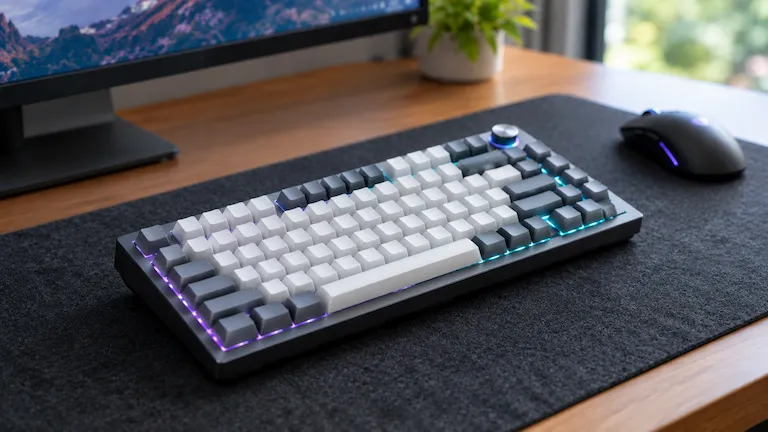
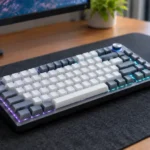
The AULA F75 is a great budget mechanical keyboard that sounds and feels solid. However, figuring out the aula f75 software often confuses people. Many users see a “Please connect your device” error right after opening the app, while others struggle to set up macros, fix European layout bugs, or change the volume knob modes.
The problem is usually how the program talks to your keyboard. The app needs a direct USB connection to read the device properly. It will not work over Bluetooth, 2.4GHz wireless modes, or if you are using a basic charge-only cable.
We will show you exactly how to download the right files, install them safely, and fix those common detection errors. We will also cover helpful Mac and Linux tools, along with simple settings tweaks to improve your gaming performance.
Follow these basic steps to get the software running right away:
Setup.exe and choose Run as Administrator.Check your exact F75 version before installing anything. Using the wrong software can break your keyboard. Use the table below to find your match.
| Keyboard Variant | Connection Type | Recommended Software Version | Source Repository | Verification Method |
| AULA F75 (Mechanical ANSI) | Tri-Mode (Wired / 2.4G / BT) | v1.0.8 or newer (.exe) | Official Aula Gear / Epomaker | Verify SHA-256 hash or scan via VirusTotal |
| AULA F75 (ISO Layout – UK/DE/FR) | Tri-Mode (Wired / 2.4G / BT) | Dedicated ISO Driver Pack | AulaStar Official Support | Check regional firmware tag (ISO-specific) |
| AULA F75 HE (Magnetic / Hall Effect) | Wired / 2.4G | AULA Web Driver (WebHID) | Official AULA Gaming Hub | Web browser handshake (no .exe required) |
| macOS / Linux Users | Any Mode | Open-source WebHID Utility | GitHub Community WebHID Projects | Direct browser connection via WebHID API |
Check these four things before running the installer to avoid errors:
| Requirement | Details | Why It Matters |
| Operating System | Windows 10 or Windows 11 (64-bit) | The official app is only for Windows. |
| Connection Type | Direct Cable Connection | You must use a physical cable. The app cannot save profiles over wireless. |
| Cable Type | Data-Capable USB-C Cable | Cheap phone cords only give power. Use the braided box cable. |
| USB Port | Motherboard USB Port | USB hubs can drop data. Plug straight into the computer case. |
Do not download files from random forums. Only use safe, official links:
aulagear.com, open the downloads area, and find the AULA F75 Driver.Windows SmartScreen might show a blue warning saying “Unknown Publisher” when you open the installer.
Why Windows Flags the Installer: Budget brands often skip buying expensive Microsoft certificates. Antivirus tools also block apps that change USB settings directly. This causes a false alarm.
How to Open the File Safely:
.exe file and select Properties.Setup.exe file, right-click on it, and pick Run as Administrator.C:\Program Files). When it is done loading, let the app open.If you open the app and see a blank screen that says “Please connect your device,” try these three easy fixes:
The software cannot find your keyboard if it is running on Bluetooth or the wireless dongle. Look at the switch on the back edge and slide it to the middle spot (the one with the little cable icon). Plug your cord in, wait a second to hear the Windows connection sound, and open the app again.
Sometimes your keyboard lights up, but the app still says nothing is connected. This usually happens if you are using a basic charging cord that only gives power but cannot send data. Make sure you use the original cable that came in the box, or grab a real data cable.
Programs like SignalRGB, OpenRGB, or Asus Armoury Crate can accidentally hijack your keyboard’s USB connection. When this happens, the AULA app gets completely blocked. Open your Task Manager by pressing Ctrl + Shift + Esc, close any other lighting programs that are running, and try opening the AULA app one more time.
Macros link many keystrokes to one button. This is helpful for gaming, data entry, or even automating complex keystrokes similar to running Flipper Zero payloads.
| Delay Mode | How It Functions | Best Use Case |
| Record Delay | Keeps the exact real-time pause between your key presses. | Game combos that need specific timing. |
| Fixed Delay | Sets the exact same pause (like 20ms) between every key. | Auto-clicks or rapid inputs. |
| No Delay | Types everything instantly with zero pause. | Text snippets or coding lines. |
| Looping Mode | Repeats the keys as long as you hold the button down. | AFK farming in games. |
Change these settings to fix input lag for fast typing or gaming:
| Setting | Recommended Value | What It Does |
| Polling Rate | 1000 Hz | Makes response time 1ms for the lowest lag. |
| Debounce Time | 4ms – 8ms | Ignores accidental switch noise. Dropping below 2ms might cause double-typing. |
| Sleep Timer | 5 – 10 Minutes | Turns off wireless mode when idle. Saves battery without long wake-up delays. |
| Onboard Memory Sync | Enabled | Saves profiles directly to the keyboard chip so they stay active when the app is closed. |
The F75 has bright lights and a metal volume knob.
This mode makes the lights react to computer sounds. The keyboard does not have a microphone. You must keep the software open on your PC to send the sound data to the lights.
The knob has two modes. Switch modes by pressing and holding it down for 3 seconds:
You can use these key combinations without opening the app:
| Shortcut | Function | Result |
| Fn + A | Windows Layout | Restores regular Windows and Alt keys. |
| Fn + W | Mac Layout | Swaps Alt and Windows keys to Option and Command. |
| Fn + Esc (Hold 3s) | Factory Reset | Flashes red lights and resets all memory. |
| Fn + Backspace | Battery Level | Lights up numbers 1 through 0 to show charge level. |
| Fn + Right Shift | Side Strip RGB | Changes colors on the side light bars. |
| Fn + Right Arrow | Cycle Effects | Changes the main backlight animations. |
| Fn + Up / Down Arrow | Brightness | Turns lights up or down. |
The main installer is only for Windows. Mac and Linux users can use two other methods to change settings.
You can change settings right in your web browser.
If you want to use the official app, use the internal memory chip:
European keyboards (like ISO-UK, ISO-DE) get layout bugs if you use the American ANSI driver. The Alt Gr and Fn keys swap places. Symbols like @ or € stop working.
How to Fix It:
Fn + Esc for 3 seconds to factory reset.Only update firmware if support tells you to. Stopping a firmware update halfway will break the keyboard.
If an update fails and the keyboard dies:
| Problem | Root Cause | Solution |
| Punctuation keys show wrong characters (like @ swapping with “) | Windows Language Mismatch | The Windows language is wrong. Change it to US QWERTY in Windows Settings (Time & Language > Language & Region). |
| Software crashes when you click “Save” | Restricted Windows Permissions | The app needs admin rights. Right-click the app shortcut and pick Run as Administrator. |
| Lighting freezes and keys stop responding | Sleep or Controller Lock | The board needs a reset. Press and hold Fn + Esc for 3 seconds. |
| 2.4GHz wireless signal drops or stutters | Wireless Signal Interference | Wi-Fi routers block the signal (if your router is experiencing general connectivity issues, see our guide on fixing an Asus router red light). Move the dongle to a USB 2.0 port away from the router. |
Setting up the F75 requires three simple rules. Download the correct driver for your exact model. Use a real data cable. Set your debounce time between 4ms and 8ms.
After you save your settings, close the app. You can switch back to wireless mode and enjoy your fully customized keyboard.
Press Fn + Backspace. The numbers 1 to 0 will light up. Each number is 10% charge. If numbers 1 to 7 are lit, you have 70% battery.
It is stuck in Gaming Mode. Hold the knob down for 3 seconds until the lights blink. It will return to normal Office Mode.
No. The app needs the USB cable to save your changes. After saving, you can unplug it and use wireless again.
Standard uses normal switches. Pro and Max have new chips and bigger batteries. HE uses magnetic switches and needs a special web tool.
You installed the US driver on a European keyboard. Reset the board by holding Fn + Esc for 3 seconds. Then use the special ISO driver from AulaStar.
Yes. Windows flags it because budget brands skip buying digital certificates. Getting the file from aulagear.com is completely safe.